
Cute Calendar Free
APKをダウンロードCute Calendar Free アプリのスクリーンショット



Cute Calendar Free AI 編集者のレビュー
Cute Calendar Free is a functional and visually appealing calendar app. It allows users to create and save plans, set reminders, and personalize the calendar with cute themes. This free app helps manage schedules effectively with a delightful user interface.
包括的な分析
Cute Calendar Free offers a user-friendly interface for managing daily schedules. Users can easily create and save plans, set reminders for important events, and personalize the calendar's appearance with various cute themes. The app's intuitive design makes navigation simple, and the reminder system is reliable. While it provides essential calendar functions, the free version may have limited features compared to paid alternatives and may include ads.
主な利点
- Visually appealing and customizable themes.
- Easy to create and save plans and events.
- Effective reminder system ensures you never miss an appointment.
改善点
- Limited features compared to paid calendar apps.
- May contain ads in the free version.
説明 Cute Calendar Free
Site Editorial Commentary:Are you looking for a cute calendar available both for young and adults?
Cute calendar Free is a feature-rich calendar application designed to help you organize your life with a touch of charm. It allows you to create and save both one-time and recurring plans with ease.**Key Features:**
* **Customizable Calendar Images:** Personalize your calendar by changing the background images. Choose photos from your mobile album or take new ones to create a unique and visually appealing calendar.
* **Date Marking:** Add visual cues to specific dates to indicate events, appointments, or other important plans for the day.
**Calendar Interface:**
The main screen displays the calendar view, providing an overview of your schedule.
**Icon Display for Plans:**
When you assign icons to your daily or recurring plans, these icons are displayed on the corresponding dates in the calendar. Up to four icons can be displayed per date, each representing a different plan priority.
* **Top Left:** Displays the icon of the highest priority recurring plan. This position is exclusively for recurring plans.
* **Bottom Left:** Displays the icon of the highest priority daily plan.
* **Top Right:** Displays the icon of the second highest priority daily plan.
* **Bottom Right:** Displays the icon of the third highest priority daily plan.
**Adding Marks to Dates:**
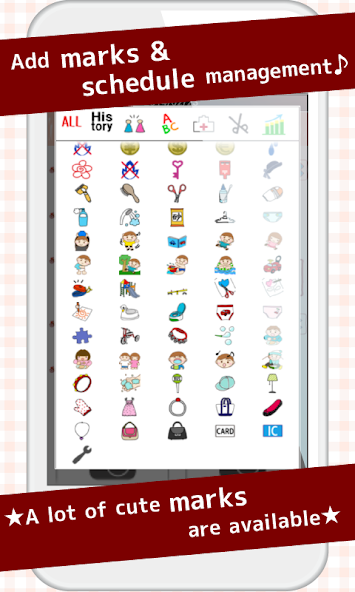
If you don't need to assign an icon to a plan, you can still add a general mark to the date. Access the "Mark" option from the Menu, select a mark, and tap the date to apply it.
**Calendar Usage:**
1. **"Add" Button:** Select a day and press the "Add" button to create a new plan for that specific day.
2. **"Repeat" Button:** Create recurring plans that repeat on a schedule.
3. **"Today" Button:** Quickly navigate back to the current date.
4. **"Left" & "Right" Buttons:** Move forward or backward through the calendar.
5. **"List" Button:** View a list of all your saved plans.
**Saving a Plan:**
1. Press the "Add" button on the calendar.
2. You will be taken to the "Plan Edit Window."
**Plan Edit Window Description:**
* **"Move to Previous Day" Button:** Shift the saved plan to the previous day.
* **"Move to Next Day" Button:** Shift the saved plan to the next day.
* **"Check" Button:** Mark the plan as completed. A red checkmark will appear on the calendar list, providing a visual confirmation of completion.
* **"Delete" Button:** Delete the plan.
* **"Time":** Set the start and end times for the plan.
* **"Title":** Enter a title for the plan. This title will be displayed in the calendar list.
* **"Memo":** Add a memo or notes to the plan.
* **"Icon":** Select an icon to represent the plan.
* **"Photo":** Save up to two photos per day related to your plans.
* **Saving:** After entering all the details, press the "Back" button on your device to automatically save the plan. You can then view the saved plan in the calendar list.
**Saving Recurring Plans:**
1. Press the "Repeat" button on the calendar.
2. This will take you to the "Alarm List" window.
3. Press "New."
4. You will be taken to the "Alarm Registration" window.
5. **"Title":** Enter a title for the recurring plan.
6. **"Memo":** Add a memo or notes.
7. **"Date":** Select the start and end dates for the recurring plan. If no end date is specified, the plan will repeat indefinitely.
8. **"Time":** Set the start and end times.
9. **"Week":** Select the days of the week on which the plan should repeat. Check all boxes if you are using the "Specified day" option below.
10. **"Which week":** Choose the weeks on which the plan should repeat.
* **a)** Calculate by the number of times a week (e.g., the second Monday and the fourth Wednesday of the month).
* **b)** Calculate by the week of a week (e.g., the second week of Monday and the fourth week of Wednesday of the month).
11. **"End of month":** Check this option if the plan should only repeat at the end of the month.
12. **"Specified day":** Select specific dates for the plan to repeat. Ensure all checkboxes in "Week" are checked when using this option.
13. **"Alarm":** Set an alarm for your recurring plan.
14. Press the "Save" button to save the plan.
15. You will automatically return to the "Alarm List" window, where you can confirm the saved plan.
16. Press the "Back" button to return to the calendar.
**Note:** The paid version of Cute Calendar Free removes all advertisements.


